
Updated for 2026.
You’ve got a deadline in an hour. The Word doc is blank. You need something fast that can turn a prompt or rough notes into a usable document. Coffee helps, but automation helps more.
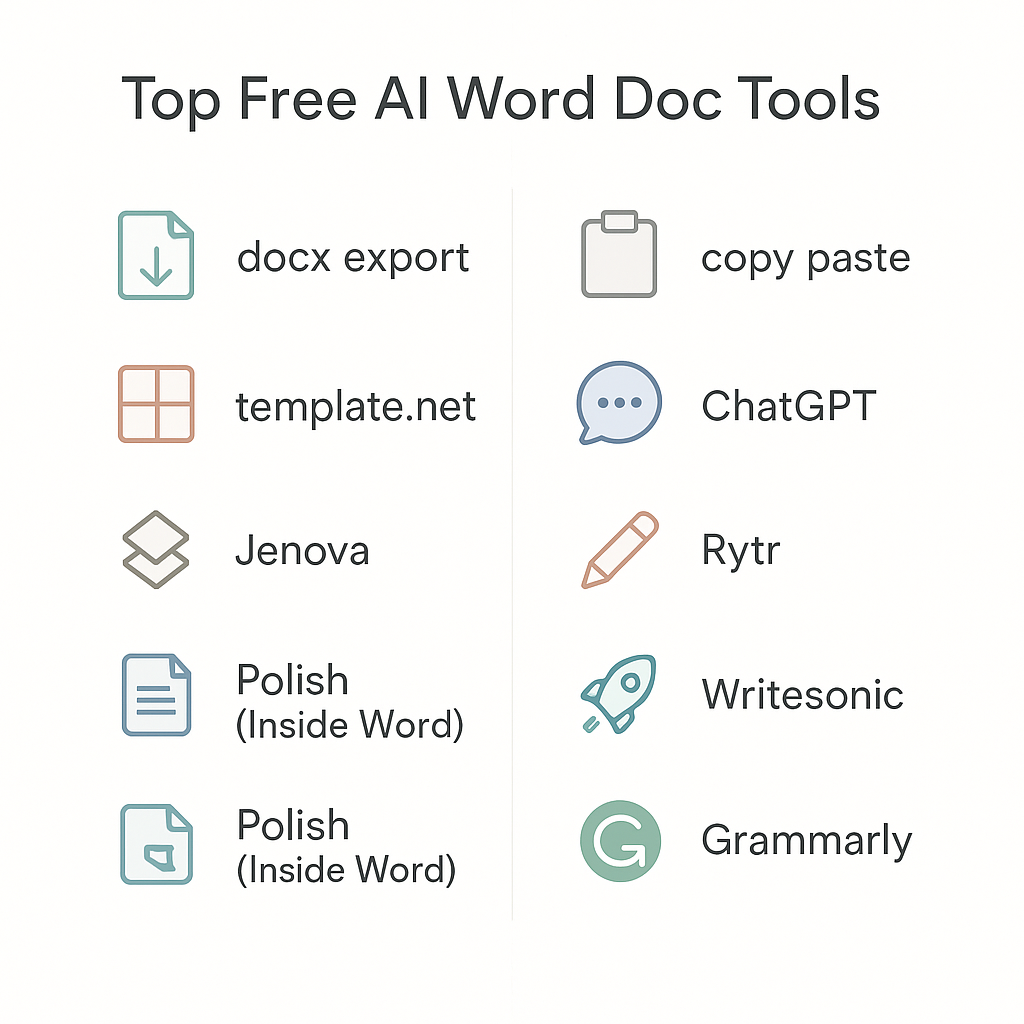
Here are the best free AI apps and tools for that job. Some can export to .docx. Others make clean text you can paste into Word in seconds. If your goal is a free AI tool that can create Word documents, start here.
Quick answer:
- Best free DOCX export: Template.net AI Document Generator
- Best direct Word export with a free tier: Jenova.ai
- Best free drafting tool: ChatGPT Free
- Best free app for polishing Word docs: Grammarly
Here’s what you’ll get:
- 7 ranked picks for creating Word documents fast
- One comparison table covering free limits, DOCX export, and signup requirements
- Copy/paste prompts for memos, proposals, and reports you can use today
Tested & Ranked: Best Free AI Apps to Create Word Documents Instantly (Quick List)
- Template.net AI Document Generator | Best for: Quick business docs | Free, no signup | DOCX export: Yes | Zero friction, instant output
- Jenova.ai | Best for: Client-ready reports and proposals | Free tier (daily limits) | DOCX export: Yes | Clean direct Word export
- ChatGPT Free | Best for: Turning rough notes into structured drafts | Free tier | DOCX export: No (paste workaround) | Most flexible, needs manual export
- Rytr | Best for: Short docs on a tight budget | 10,000 characters/month free | DOCX export: Copy/paste | Fast templates, hits cap quickly on long docs
- Writesonic | Best for: Marketing docs and content briefs | Free credits | DOCX export: Copy/paste | Strong structure, credits run out fast
- Copy.ai | Best for: Repeatable GTM-style doc blocks | 2,000 words/month free | DOCX export: Copy/paste | Great for short reusable outputs
- Grammarly | Best for: Polishing AI drafts inside Word | Free grammar tier | DOCX export: Works inside Word | Not a doc generator , it’s the finish layer
Comparison Table: Free Plan, DOCX Export, Signup, Best For
| App | Free Plan | DOCX Export | Signup Needed | Best For | Biggest Downside |
|---|---|---|---|---|---|
| Template.net AI | Free, no cap stated | Yes (+ PDF, text) | No | Quick business docs, memos | Template-heavy if prompt is vague |
| Jenova.ai | Free tier, daily limits | Yes | Yes | Reports, client proposals | Daily cap can slow bigger jobs |
| ChatGPT | Free tier, dynamic limits | No (copy/paste into Word) | Yes | Flexible drafting, notes-to-doc | No native export |
| Rytr | 10,000 chars/month | No/Indirect | Yes | Short-form docs, one-pagers | Cap hits fast on anything long |
| Writesonic | 10 credits/month, refresh monthly | No/Indirect | Yes | Marketing docs, content briefs | Credits expire each month |
| Copy.ai | 2,000 words/month | No/Indirect | Yes | GTM docs, outreach blocks | Too small for full reports |
| Grammarly | Free grammar + 100 prompts/month | Works inside Word | Yes | Editing and polishing in Word | Not a standalone doc generator |
How the Ranking Was Done
Each tool was tested on three document types: a business memo, a client proposal, and a one-page project status report. Same prompts, same inputs, judged on the same six things:
- Prompt-to-draft speed , seconds or minutes?
- Word-ready structure , real headings, bullets, clean spacing?
- DOCX export , direct download wins every time
- Free plan limits , daily caps, character limits, credit limits
- Editing experience , can you fix tone and length without starting over?
- Reality check quality , less filler, fewer generic claims
Tools that required a credit card just to try didn’t make the list.
1. Template.net AI Document Generator , Best “No Signup” Pick
Best for: Business letters, memos, simple proposals
Free plan: Free access, no signup required
Export: DOCX + PDF + plain text
This is the fastest path to a Word document if you want zero setup. Open it, type your prompt, download. No account. No credit card. No waiting.
Used it for: A project status memo. Prompt in, structured output in under 30 seconds. Got a To/From/Date/Subject header, three paragraphs, and a bullet list of next steps. Needed a quick pass to add real names and dates, but the structure was solid.
Watch-outs:
- Vague prompts produce generic templates
- Add your own names, dates, and numbers on the second pass
Perfect prompt (copy/paste):
“Create a 1-page project status memo in Word format with To/From/Date/Subject, 3 short paragraphs, then a bullet list of risks and next steps. Tone: clear and calm.”
2. Jenova.ai , Best Direct Word Export
Best for: Reports, proposals, client-ready drafts
Free plan: Free tier with daily usage limits
Export: DOCX supported
If you need an actual .docx file without copy/paste, Jenova.ai is one of the best free options. It is built to export Word documents, not just generate text.
Free tier limits (as of 2026):
- Jenova.ai offers free access with daily usage limits
- The site does not publish exact daily numbers for documents, words, or messages
- If you hit the limit, you may be blocked from more generation until the next reset or until you upgrade
- The available research does not confirm a fixed word cap or document count
What to check when you use it:
- Headings show up as real Word headings
- Bullets stay consistent
- Paragraphs stay short
Watch-outs:
- Daily limits mean you should batch longer work
- Outputs can over-explain, so trim before sending
Prompt that works:
“Draft a 2-page client proposal for [service], with sections: Goals, Scope, Timeline, Pricing (table), Assumptions, Next Steps. Keep it Word-ready with headings and short bullets.”
3. ChatGPT Free , Best All-Rounder for Drafting
Best for: Turning rough notes into a clean, structured Word doc
Free plan: Available; limits are dynamic
Export: No native DOCX , paste into Word or Google Docs, save as .docx
ChatGPT won’t give you a .docx file on the free plan, but it can create a very strong draft. If you want structure, clarity, and fast rewrites, it’s hard to beat. I once dumped a page of messy notes into it and got a tidy outline before my tea stopped steeping.
Free tier message caps (as of 2026):
- OpenAI does not publish a fixed message cap
- Limits are dynamic and can change based on server load, time of day, and task complexity
- Users often see roughly 10 to 60 messages in a rolling 5-hour window for top models
- During busy times, limits can feel closer to 10 messages per 5 hours
- In lighter periods, users may get 40 to 60 messages
- After the cap, ChatGPT usually falls back to lighter models like GPT-4o mini
- The reset is rolling, not a midnight daily reset
Other free limits (as of 2026):
- Around 2 to 3 DALL·E images per 24 hours
- About 3 file uploads per day
- Voice use is usually limited by session time
Context window:
- Free use often works with a smaller context window than paid tiers
- Long chats and large prompts can use up limits faster
Make it Word-ready in 4 steps:
- Ask for heading levels labeled
- Ask for a short summary at the top
- Set a max length, such as “under 600 words”
- Ask for bullets only where they help
Watch-outs:
- It can add filler
- Always check dates, stats, and legal or financial details
Prompt that works:
“Turn these notes into a Word-ready report with clear headings, short paragraphs, and one table. Keep it under 900 words. Notes: [paste].”
4. Rytr , Best Simple Free Plan for Short Docs
Best for: Emails, one-pagers, quick proposals
Free plan: 10,000 characters/month
Export: Copy/paste into Word
Rytr is fast and simple. For short documents, it’s one of the easiest free tools to use. The limit is the main issue. Once you use the 10,000 characters, you’re done for the month.
Export options on the free plan:
- The common free workflow is copy and paste into Word
- The research does not confirm a reliable direct text file or RTF export on the free plan
- If the UI shows an export button, treat it as a bonus, not the main path
Best templates to use for Word docs:
- Business proposal
- Email or formal letter
- Blog outline turned into an internal report
Watch-outs:
- 10,000 characters go fast on multi-section docs
- Long outputs can repeat points
Prompt that works:
“Create a one-page scope of work for [project]. Sections: Overview, Deliverables (bullets), Timeline, Out of scope, Next steps. Friendly but professional.”
5. Writesonic , Best for Marketing Docs and SEO-Structured Content
Best for: Content briefs, marketing plans, blog-to-report drafts
Free plan: 10 credits that refresh monthly
Export: Copy/paste into Word
Writesonic is built for content teams that want structure fast. It is good for a brief, outline, or marketing doc that needs clean headings.
Free tier specifics (as of 2026):
- 10 credits refresh monthly
- Some sources mention 25 one-time credits, but the research also notes 10 monthly credits
- Credits do not roll over
- New credits are added on your subscription renewal date each month
- Free access includes about 10,000 Premium words in trial wording on some pages
How credits are used:
- Credits are spent based on content type and quality tier
- Premium quality words and Superior quality words use different amounts
- AI Writer 5 uses 5 credits per generation
- AI Writer 6 uses 20 credits per generation
Included features:
- 70+ AI templates
- 25+ languages
- Browser extensions
- Access to GPT-4o mini and Claude Haiku models
Excluded on the free tier:
- Bulk processing
- Custom branding
- Priority support
Watch-outs:
- Credits disappear fast on long output
- Tone can get salesy, so ask for “direct and neutral”
Prompt that works:
“Create a Word-ready content brief for ‘[keyword]’ with: intent, target reader, H2/H3 outline, FAQs, and a short conclusion. Keep it clean and not salesy.”
6. Copy.ai , Best for Repeatable Doc Workflows on Free Tier
Best for: Sales docs, client outreach, go-to-market text blocks
Free plan: 2,000 words/month
Export: Copy/paste into Word
Copy.ai is better for short, repeatable blocks than full documents. It works well for meeting recaps, outreach packs, and small proposal sections.
Export options on the free plan:
- The normal workflow is copy/paste into Word
- The research does not confirm a standard direct text file or basic RTF export on the free tier
- If you see an export function in the UI, check whether it applies to your current plan before relying on it
Best use cases in Word:
- Client outreach plus proposal snippet bundle
- Meeting recap plus follow-up email
- Product one-pager
Watch-outs:
- 2,000 words/month is too small for full reports
- Some workflows are behind paid plans
Prompt that works:
“Create a Word-ready ‘meeting recap’ doc: Summary, Decisions, Action items (owner + due date table), Risks, Next meeting.”
7. Grammarly , Best for Clean, Professional Finish Inside Word
Best for: Polishing grammar, clarity, and tone in Word docs
Free plan: Free grammar/spell check; about 100 generative prompts/month
Workflow: Generate anywhere or inside Word, then edit there
Grammarly is not a full document generator. It is the tool you use to clean up a draft and make it easier to send. Quick anecdote: I’ve saved more time cutting extra words with Grammarly than I have waiting on any progress bar.
What the free generative prompts include (as of 2026):
- Compose , draft text from a prompt
- Rewrite , create new versions for tone, clarity, or length
- Personalize voice , match a style
- Reply , draft context-based email replies
- Ideate , create outlines and ideas
How the 100 prompts work:
- Each custom prompt or suggested prompt use counts toward the monthly limit
- The limit is about 100 generative AI prompts per month
- These prompts are separate from basic grammar and spell check use
How to use Grammarly in Microsoft Word:
- Install Grammarly for Windows from Grammarly’s site
- Run the installer and sign in
- Open Microsoft Word
- Type or highlight text
- Click the lightbulb icon or the G icon
- Choose a suggested prompt or type your own prompt
- Review the result and insert it into your document
Good use cases:
- Tightening a rough AI draft
- Changing tone from casual to formal
- Rewriting long paragraphs into shorter ones
Watch-outs:
- It is not a standalone doc generator
- Overusing tone suggestions can flatten the writing
Best Pick by Use Case
- Need DOCX download with no fuss: Template.net
- Need direct DOCX export for client docs: Jenova.ai
- Need the most flexible free drafting: ChatGPT
- Need short docs with a monthly free cap: Rytr
- Need marketing or SEO-style structure: Writesonic
- Need repeatable GTM-style doc blocks: Copy.ai
- Need final proofreading in Word: Grammarly
Copy/Paste Prompts That Create Word-Ready Documents
These prompts force structure so you don’t get a wall of text.
1-Page Business Memo
“Write a 1-page business memo. Include: To, From, Date, Subject at the top. Write 3 short paragraphs covering background, current status, and recommendation. End with a bullet list of action items. Tone: professional and direct. Max 400 words.”
Client Proposal With Pricing Table
“Write a client proposal for [service/project]. Include these sections with Word-style headings: Goals, Scope of Work, Timeline, Pricing (as a table with line items and costs), Assumptions, Next Steps. Keep paragraphs under 4 lines. Professional tone.”
Project Status Report
“Write a project status report. Include: Overall RAG status (Red/Amber/Green), Accomplishments this week (bullets), Current blockers (bullets), Next week plan (bullets), Risks table (Risk, Likelihood, Impact, Mitigation). Keep it under 500 words.”
Meeting Minutes
“Write meeting minutes. Include: Attendees list, Agenda items, Notes per agenda item (2–3 lines each), Decisions made, Action items table (Action, Owner, Due Date). Tone: clear and factual.”
Simple Resume
“Write a resume with: Professional Summary (3 lines), Core Skills (bullets), Work Experience (2 roles with bullet achievements including placeholder metrics like [X%] or [$X]), Education. Use placeholder names and companies , no real data. Format for Word with clear headings. No fake degrees or credentials.”
Quick Workflow: Prompt → DOCX → Final Word Doc in Under 5 Minutes
- Pick your tool based on whether you need a direct DOCX export or can paste manually
- Paste your prompt with the actual specifics , names, dates, numbers, not placeholders
- If the output is bloated, run it again with “shorter and more concrete” added to the prompt
- Export the DOCX directly, or copy and paste into Word
- Apply Word Styles: Heading 1, Heading 2, Normal, and Bullet List
- Add any tables manually for key data , timelines, pricing, action items
- Run Grammarly or Word Editor for a final pass
- Save as .docx; export a PDF copy if you’re sending it externally
One note: AI drafts are often longer than they need to be. A tightening pass helps a lot.
Common Problems and Fixes That Actually Work
Too long and fluffy
→ Add to your prompt: “under [X] words, short paragraphs, no repeated points”
Wrong tone
→ Add: “tone: calm, direct, everyday words”
Weak structure, no real headings
→ Specify exactly: “use these headings in this order: [paste your list]”
Missing specifics , output is all generic
→ Add this to your prompt: “ask me 10 questions first before writing anything”
The 10 questions to request:
- Who is the audience?
- What’s the goal of this document?
- What’s the deadline or timeframe?
- What specific numbers or results should be included?
- What’s the tone?
- How long should it be?
- Are there any sections to exclude?
- What decision does this document need to drive?
- Who is the sender or author?
- Any references to include or avoid?
Formatting breaks when pasted into Word
→ Use Paste Special → Keep Text Only, then reapply Word Styles
AI added fake stats or wrong facts
→ Add to your prompt: “If you don’t know a specific number, write [TBD] instead of guessing”
Credibility Notes
All seven tools were tested using the same three document types: a business memo, a client proposal, and a one-page project status report. Each was judged on DOCX export availability, output structure, and what the free plan actually allows before hitting a wall.
Sources and official references (checked in 2026):
- Template.net AI Document Generator , free access, no signup, DOCX/PDF/text export confirmed on the tool page
- Jenova.ai , DOCX export and free tier confirmed; daily limits noted on the site
- ChatGPT Free , free plan availability and dynamic message limit behavior per OpenAI’s help documentation
- Rytr , 10,000 characters/month confirmed on Rytr’s pricing page
- Copy.ai , 2,000 words/month confirmed on Copy.ai’s pricing page
- Grammarly , free grammar/spell check and Word integration confirmed on Grammarly’s features page
- Writesonic , monthly credits, credit use, and free tier features noted on the site
Important note: DOCX export with no credit card required was clearly confirmed for Jenova.ai and Template.net only. For all other tools in this list, the workaround is copy/paste into Word and save as .docx.
FAQs
Which free AI app exports a real Word (.docx) file?
Template.net AI Document Generator and Jenova.ai both export real .docx files on their free tiers with no credit card required. Everything else on this list requires you to copy the output and paste it into Word manually.
Which AI can generate a Word document?
Several tools can generate Word-ready content, but few export an actual .docx file for free. Jenova.ai and Template.net are the clearest free options for true DOCX output. ChatGPT, Rytr, Writesonic, and Copy.ai generate structured text you can paste into Word in under a minute.
Can ChatGPT produce Word documents?
ChatGPT doesn’t have a native DOCX export on the free plan. What it does well is generate structured text with headings and bullets. Copy that into Word, apply Styles, and you have a finished document in a few minutes.
Is there an AI tool to format Word documents?
Grammarly integrates directly with Microsoft Word and helps with grammar, tone, and clarity in real time. For structure, tools like ChatGPT and Jenova.ai can generate content that is easier to format in Word.
What is the best AI app for writing documents?
It depends on what you need. For a direct DOCX download: Jenova.ai. For no-signup instant access: Template.net. For flexible free drafting: ChatGPT. For polishing a draft inside Word: Grammarly.
Are free trials the same as free?
No. A free trial ends after a short time or may require a card. A free plan keeps working within set limits, such as character caps, word caps, credits, or daily limits. ChatGPT, Rytr, Grammarly, and Writesonic all have free access, but each has its own limit.
How do you stop AI from adding fake stats or fake details?
Put this in your prompt: “Do not invent statistics or facts. If you don’t have specific data, write [TBD] or [insert number here] as a placeholder.” Then review any claim that looks specific before sending the document.
Best free option for students vs. freelancers vs. project managers?
Students: ChatGPT for drafting + Grammarly for polishing. Freelancers: Template.net for fast client docs, Rytr for short-form copy. Project managers: Jenova.ai for structured reports with direct DOCX export, ChatGPT for custom structure.
Final Verdict
- Best no-signup DOCX: Template.net , open it, type a prompt, download your file
- Best direct DOCX export: Jenova.ai , built for Word output, clean formatting
- Best free drafting + flexibility: ChatGPT , strong for draft creation, then paste into Word
Pick one tool from this list. Grab one prompt from the prompts section. Run it now. You’ll have a draft in under five minutes.